
Choose where things go
By default, things go back to the AI app you used last. You can change that per send or for good.
The usual place
Paisted notices which AI app you were in last and sends there. It doesn't read what's in it. With two of its windows open, it reads their titles to tell them apart, on your Mac only. To count Slack, Mail and other apps too, see Send to any app.
Always from one app to another
Open Settings › Apps and find Rules. Pick the app you send from and the app it should go to, then choose Add. From then on, whatever you send from Xcode goes to Cursor, and whatever you send from Figma goes to Claude, wherever you were last.
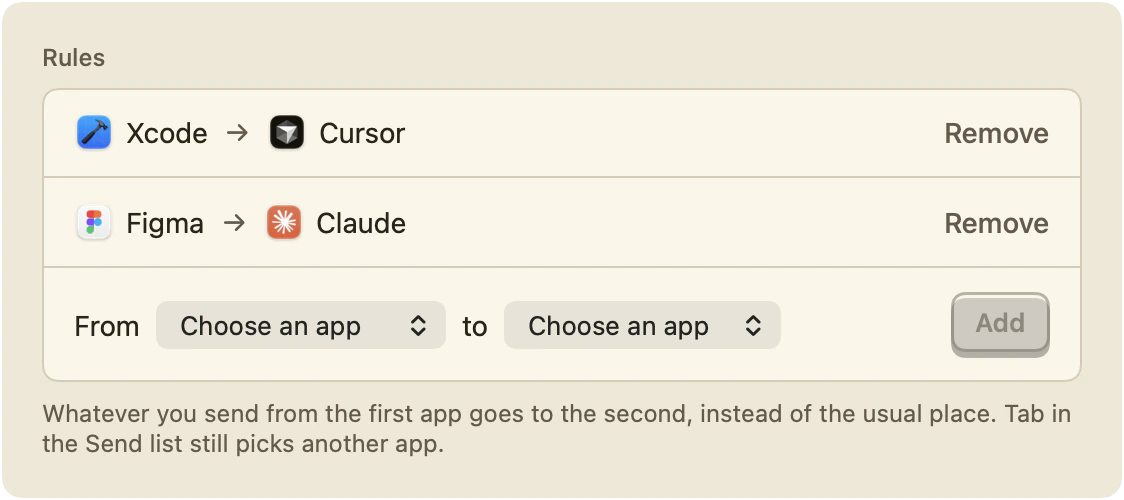
The Send list shows where a rule sends things, at the top. Press ⇥ to pick another app just this once. From lists the apps that are open now. For any other app, choose Other….
Another agent, just this once
With the Send list open, press ⇥ (Tab). The top of the list switches to the next agent, like to Codex. Keep pressing to go round, ⇧⇥ goes back. After that comes I'll choose where, which shows a list after the capture, and last the clipboard only, which copies without pasting. Save in a folder… is one of the stops too: the capture becomes a file in the folder you choose instead of going to an app, and your voice, if you add it, is saved next to it as a text file. Settings › General shows the folder and lets you change it.
Two chats open in one app
With two windows of the same app open, like two terminals with Claude Code in each, the top of the Send list names the window too: to Terminal · Fix the login. That's the window you were in last, and that's where it goes. Press ⇥ to pick the other window instead. Paisted brings it to the front and pastes only once it's there.
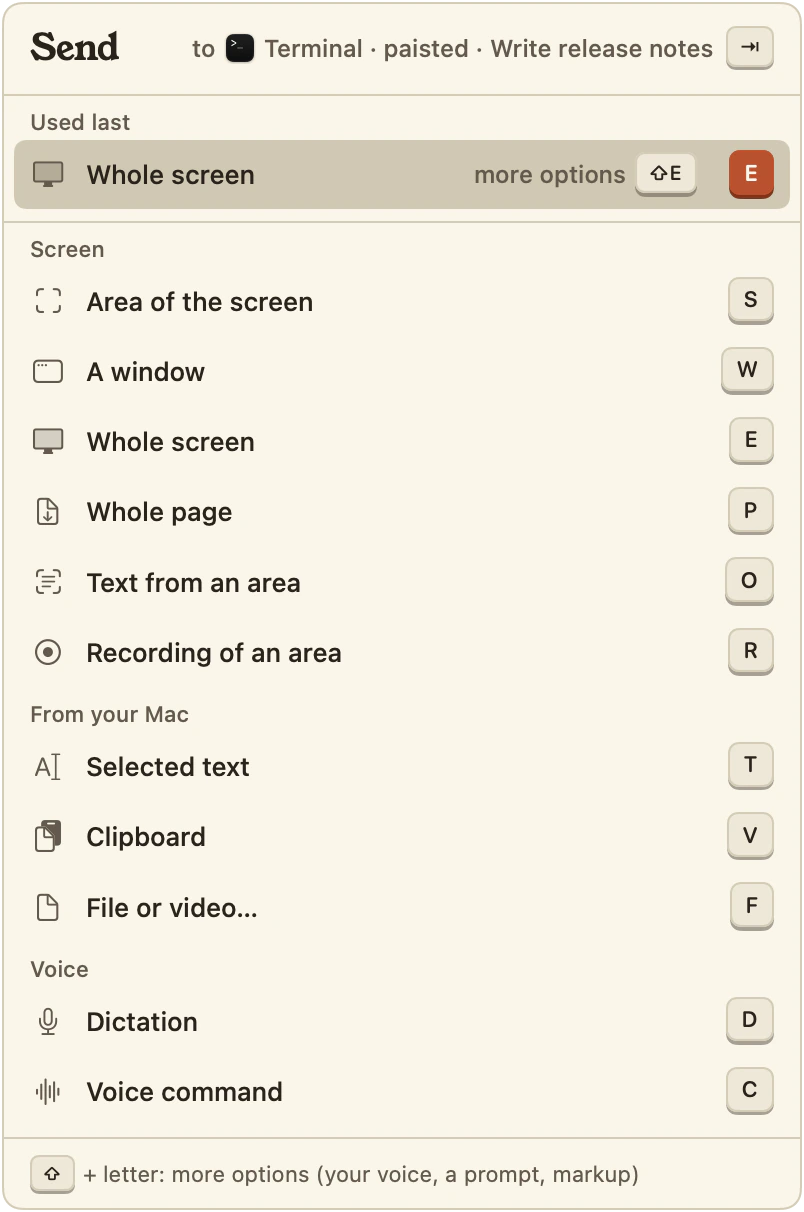
⌘⇧2 shows the same name at the bottom of the screen while you drag. Tabs inside one terminal window can't be told apart from outside, so it goes to the tab that's open in that window.
Whatever you send also stays on your clipboard, and the message after a paste says so. If it lands in the wrong chat, click in the other one and press ⌘V.
Landed in the wrong chat?
For 12 seconds after a screenshot, the message in the corner shows Move to and the other AI apps you have open. Click one and the picture goes there. It comes out of the first chat when Paisted can tell it's its own. If it can't, the message says so and leaves the first chat alone.
When you're already in an agent
Say you used Claude last, and now you're working in Antigravity. Press ⌘⇧2 there, and Paisted asks where it should go: Antigravity, the one you're in, or Claude, the one you used last. ↩ or 1 pastes right where you are, 2 sends it to the other one. esc cancels.
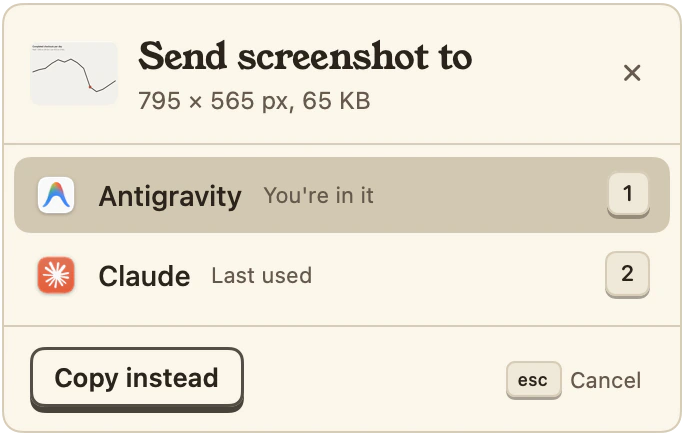
It asks only when you didn't pick the place yourself. In the Send list the top already says where it goes, so nothing extra comes up. To turn it off, open Settings › General and switch off Ask when you're in another agent.
Ask every time
In Settings › General, turn on Ask where to send, each time. After each capture you get a short list of your agents. Press a number or click one.
AI chats in a browser
Pick I'll choose where and your open AI chats show up in the list, next to your apps. Chrome works today. Other browsers are coming.
Apps Paisted knows
Codex, ChatGPT, Claude, Cursor and Antigravity are recognized out of the box and switched on. Other agents you have on your Mac, like OpenClaw, Hermes, Gemini or Ollama, show up too, switched off until you turn them on in Settings › Apps. Only apps you have installed are listed. To add any other app, choose Add an AI app… there.
Terminals
Turn on Count terminals as agents to send to a terminal. A terminal can't hold an image, so it gets the file's path instead, ready for a command-line agent. Screenshots in Claude Code walks through it.
NextChange the shortcut