
Preview before it goes
Check a screenshot, recording or text before it reaches your agent.
Open Settings › General and find Show a preview first. Turn it on for any of these: Screenshots, Recordings, Files, and Text, pages and dictation.
The preview appears in the corner of the screen. It's for ⌘⇧2, the direct shortcuts, a mouse button and links. When the bar comes up, it already shows what you took, so the preview doesn't come up a second time. From there:
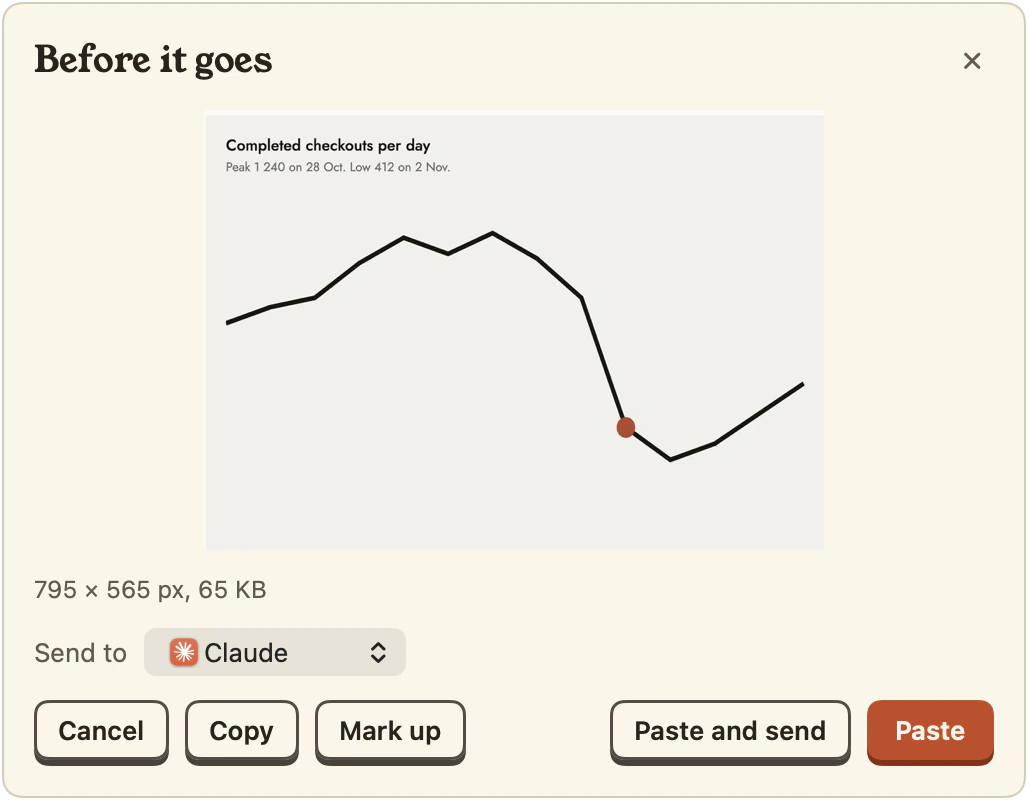
| Paste | Pastes into the agent shown, and leaves the message unsent. |
| Paste and send | Pastes and presses Enter for you, for this one. To send every time, see Paste and send. |
| Mark up | For screenshots: arrows, boxes, highlights, labels, hidden parts. See Mark up a screenshot. |
| Copy | Puts it on the clipboard only. |
| Cancel | Drops it. A cancelled recording is deleted right away. |