
Add your voice, a prompt or markup
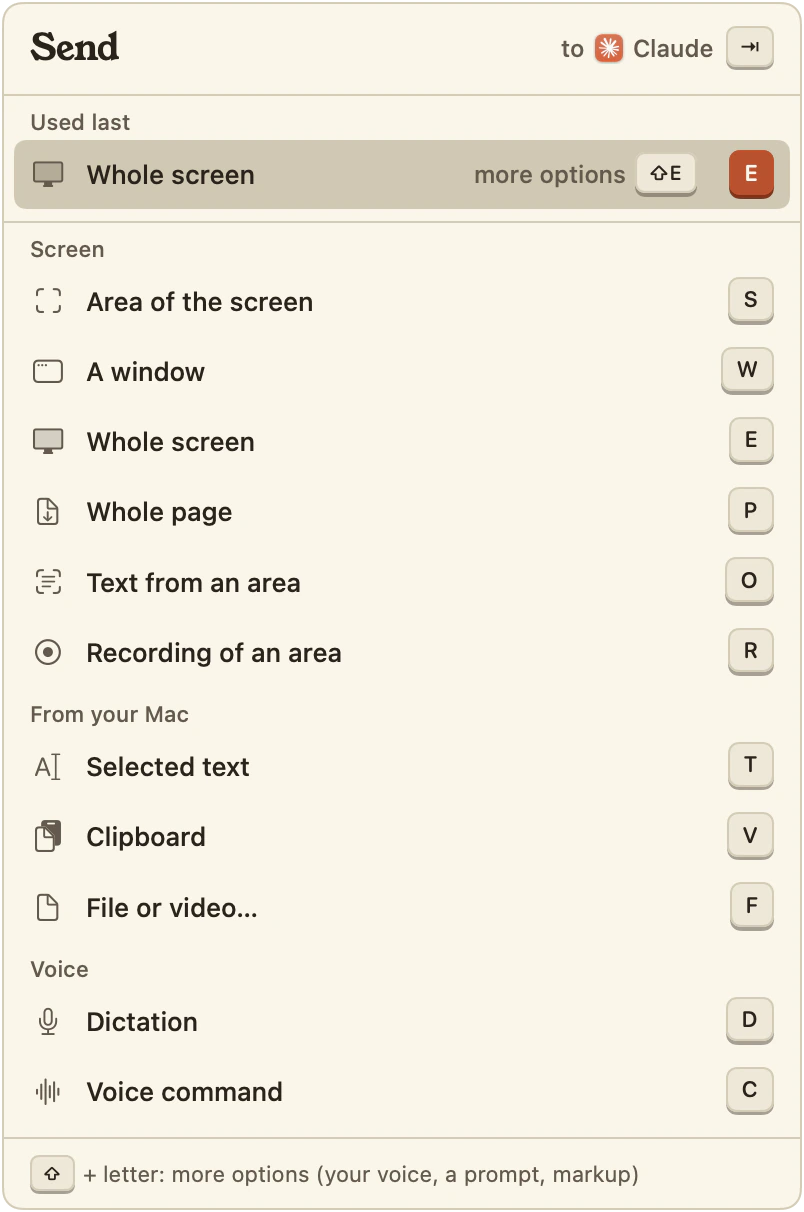
Hold ⇧ with a letter in the Send list. After the capture, a bar lets you add something before it goes.
- Press ⌘⇧1. The Send list opens.
- Hold ⇧ and press a letter, like ⇧S for an area. Or click more options on the highlighted row.
- Drag over the area. A bar comes up right under it. The area keeps a frame and the rest of the screen goes dim, so you see what you're adding to. After a window, the whole screen, a long page, text or files, the bar comes up in the middle of the screen.
- Add what you want, then press ↩. Or press ↩ straight away to send it as it is.
What's on the bar
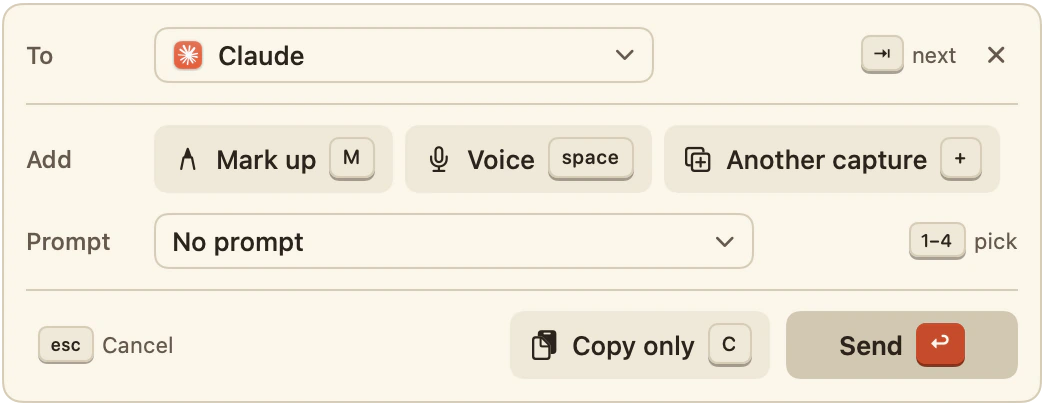
| On the bar | Key | What happens |
|---|---|---|
| To menu | ⇥ | Pick another agent for this one. Click the menu to see them all, or press Tab to go to the next. |
| Mark up | M | Arrows, boxes, labels and hiding. Then the bar comes back. Mark up a screenshot. |
| Voice | space | You say something about it, and both land together. Voice. |
| Another capture | + | It waits, and the list opens for the next thing. Send several things at once. |
| Prompt menu | 1 to 9 | One of your prompts goes in under it. Click the menu to pick by name. Your own prompts. |
| Copy only | C | Onto the clipboard. Nothing is pasted. |
| Send | ↩ | It goes to your agent, unsent unless you set Paste and send. |
| Cancel | esc | Nothing is sent or kept. Click it, or press the key. |
| Save as workflow | Keeps what you picked here, the agent and the prompt, as one of your workflows. The send itself carries on. |
Everything on the bar works with the mouse too: click a menu, a button, or Send.
Pick the agent
The To menu at the top lists your agents, then I'll choose where (every open app, and AI chats open in Chrome) and The clipboard only. ⇥ moves to the next one without opening the menu, ⇧⇥ goes back. The choice is for this one send.
Add a prompt
The Prompt menu shows your prompts by name. Pick one, or press its number. It goes in under the capture, in the same message. A prompt set to join this action by itself already shows as picked: choose No prompt to take it off.
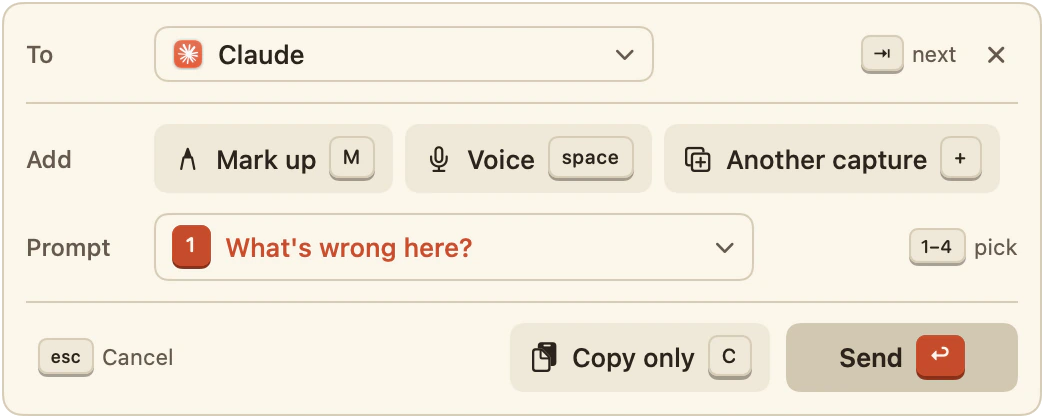
Add your voice, or more things
- space on the bar starts listening. Say what you want to know, then click Done. Your words go in under the capture. Voice.
- Pick a prompt first, then space: the prompt goes first, your words under it.
- + keeps this one waiting and opens the list again. While something waits, every capture ends on the bar, and its button says Send all. Send several things at once.
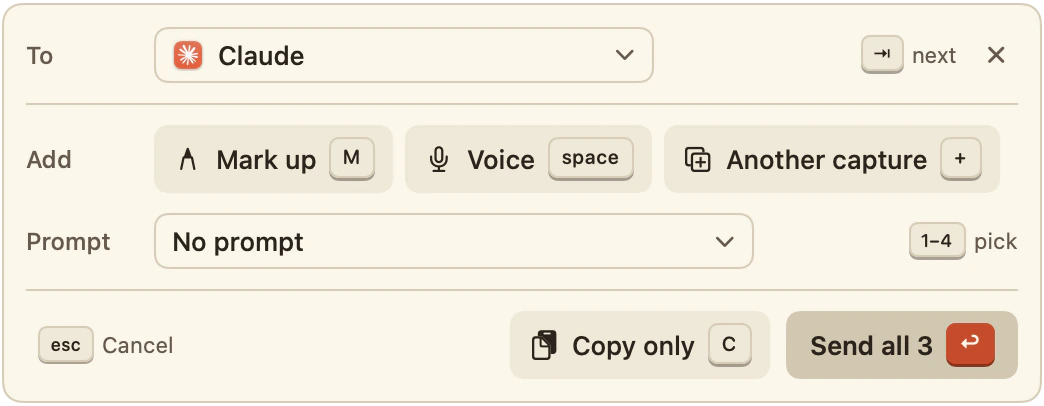
The bar is the same width whatever your agent is called, so nothing jumps while you switch.
NextYour own prompts