
Copy a screenshot without sending it
Sometimes you want the picture on the clipboard, not in an agent. There are four ways.
C on the bar
When the bar comes up (⇧ with a letter in the Send list), press C instead of ↩. It goes onto the clipboard and nothing is pasted.
Hold ⌃ as you let go
Press ⌘⇧1, then S, and drag over an area. Hold ⌃ as you let go of the mouse. The screenshot goes onto the clipboard and nothing is pasted, like ⌘⇧⌃4 in macOS. It works for a window too: press space, then hold ⌃ as you click it.
While you drag, the line at the bottom of the screen reminds you: ⌃ as you let go: copy only.
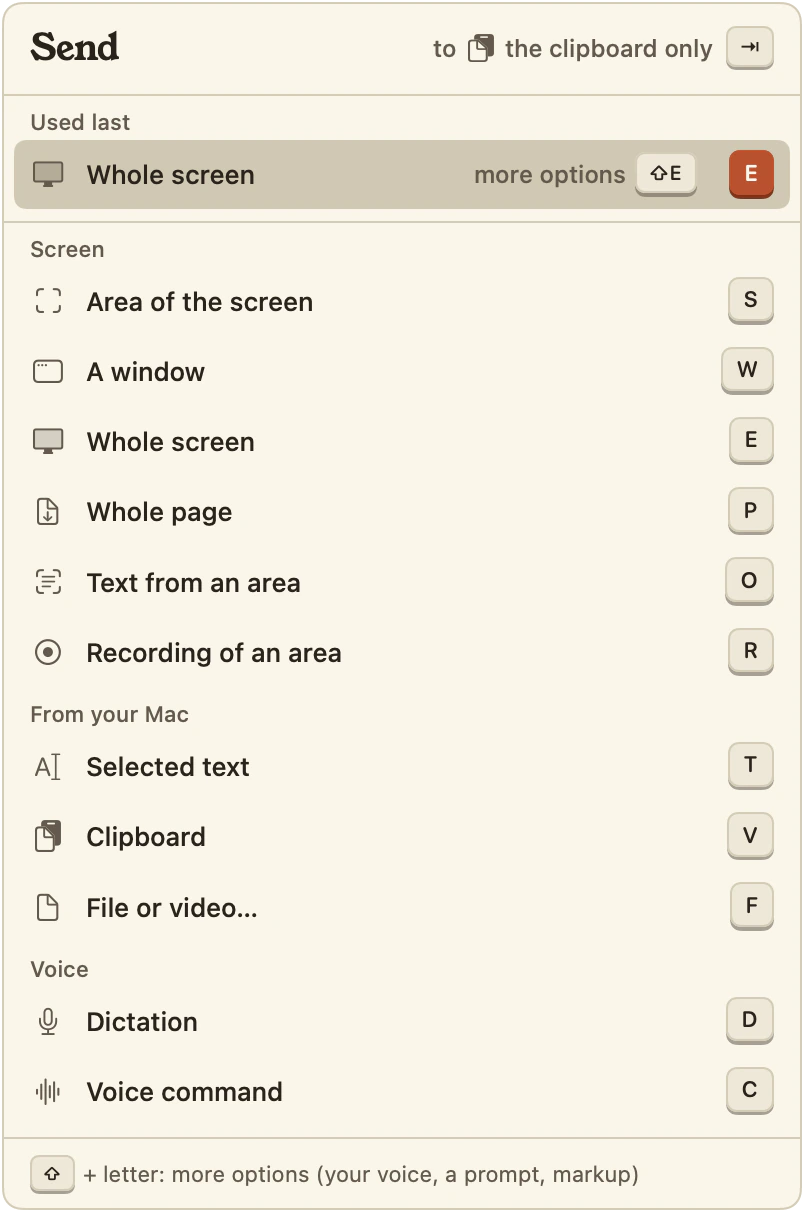
The clipboard stop in the Send list
With the Send list open, press ⇥ until the top says to the clipboard only. Whatever you pick next is copied, not paisted. The bar then only offers ↩ to copy, since there's nothing to send a voice note or a prompt with.
A shortcut of its own
Open Settings › Shortcuts and give Screenshot an area to the clipboard its own keys, under Direct shortcuts, if you want them. It goes straight to picking an area.
A copy doesn't count as a paste, so it's free on every plan. Paste it anywhere with ⌘V.
NextHow Paisted paistes