
Paste and send
Have Paisted press Enter for you, every time or just for the captures you pick.
Out of the box, what you send waits in the message box for your question and your Enter. When you're taking screenshots one after another, on a call or going through slides, you can have each one go straight away.
Choose what happens
Open Settings › General and find After it's pasted.
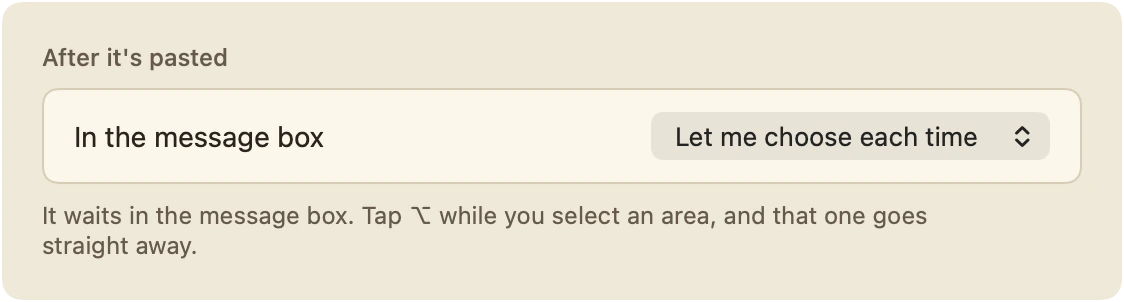
| Paste only | It waits in the message box. You add your question and press Enter. This is how Paisted starts. |
| Paste and send | Paisted presses Enter, so the message goes straight away. |
| Let me choose each time | It waits, unless you tap ⌥ while you select the area. |
Tap ⌥ while you select
With Let me choose each time, press ⌘⇧2, or S in the Send list, and tap ⌥ once, before or while you drag. The key on the line at the bottom of the screen turns orange: this one will be sent. Tap it again to change your mind.

It's a tap, so it works the same with a mouse or a trackpad. Holding ⌥ as you let go works too. It also works for a whole window: press space, tap ⌥, click the window.
With Paste and send, ⌥ works the other way round: the line says paste only, and that capture waits for you.
A prompt or your voice
When a prompt or a voice note goes with the capture, Paisted presses Enter once all of it is in the box, so it's one message.
When Paisted doesn't press Enter
- In a terminal, where Enter would run a command. It gets the paste only.
- When it couldn't find the message box. Your capture is on the clipboard.
- When the cursor moved to another place before the picture finished attaching.
Sending to the clipboard only, with ⌃ or the clipboard stop in the Send list, never presses anything.
NextPreview before it goes