
Send to any app
Paisted is made for AI agents, but anything with a box to paste into works: Slack, WhatsApp, Notion, Mail and the rest.
Just this once
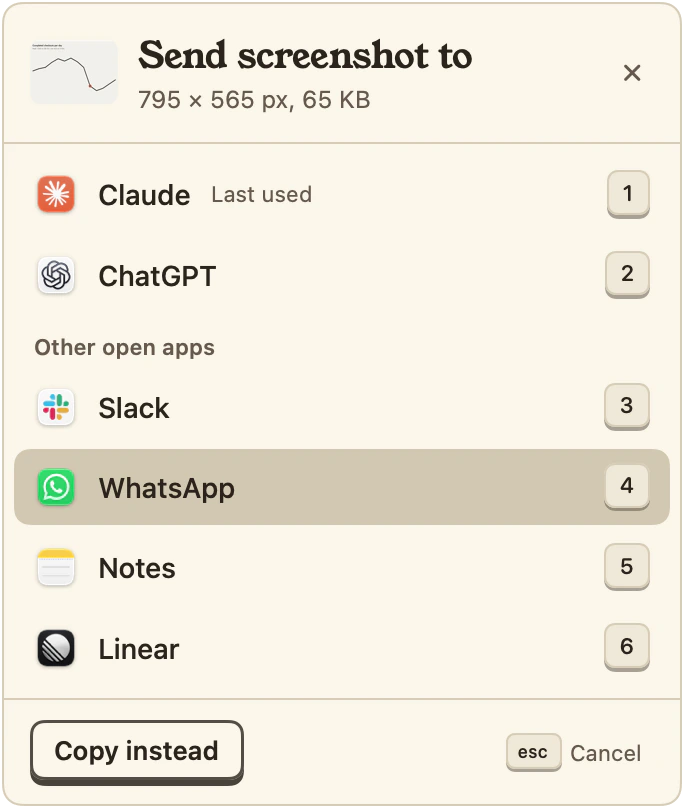
Press ⌘⇧1 and then ⇥ until the top of the list says I'll choose where. Pick what to send. A short list opens with your agents and, under Other open apps, every app that's open right now. Press its number or click it.
Apps you use often
Open Settings › Apps and find Other apps. Apps people often send to that are on your Mac show up there: click one to add it. Choose any app… adds anything else.
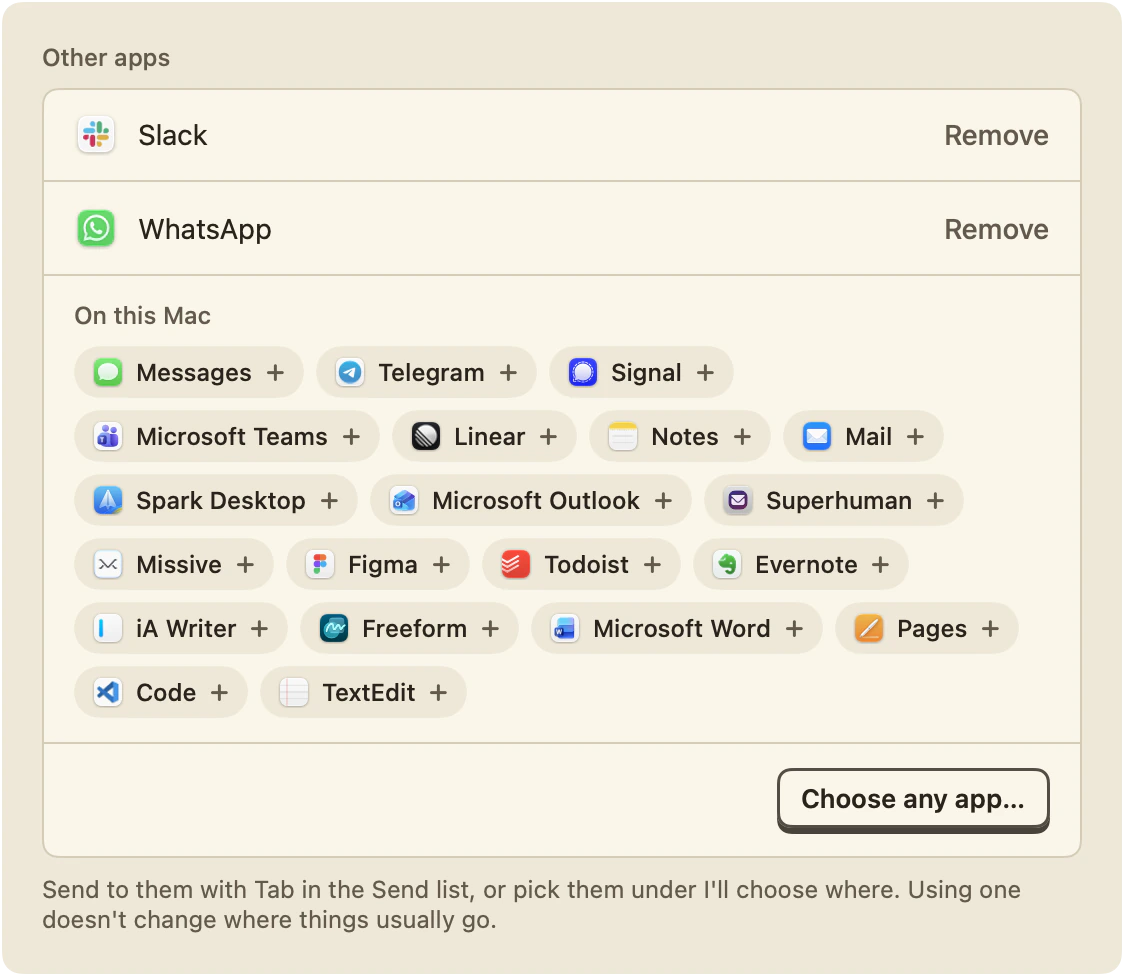
Added apps are offered when you press ⇥ in the Send list, and in I'll choose where.
Paisted offers it for you
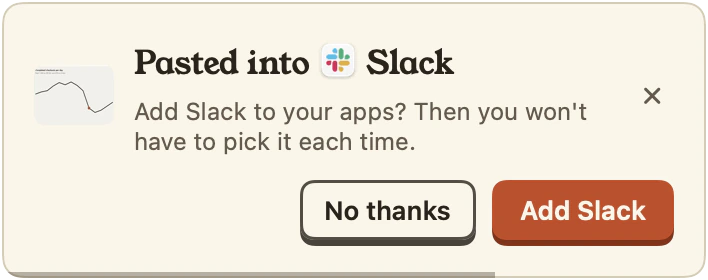
Send to an app that isn't on the list a second time, and the message in the corner asks whether to add it. Choose Add and it's there from then on. If you let the message go, it asks once more on the fifth send. No thanks means it won't ask about that app again.
Where things go when you don't pick
Open Settings › Apps and choose under Where things go:
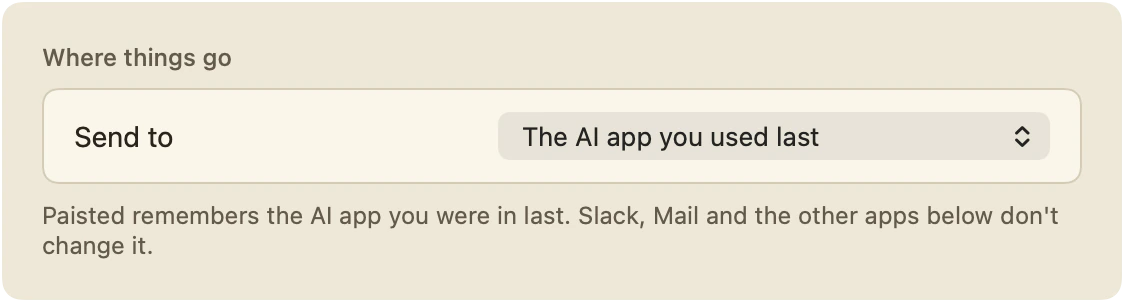
| The AI app you used last | The default. You can spend all morning in Slack and a screenshot still goes to Claude, unless you pick Slack for it. |
| The app you used last, from this page | Any app on the Apps page counts, AI or not. Switch to Slack, and the next screenshot goes to Slack. |
If Paisted can't find where to type in an app, it presses nothing and tells you. What you sent is on the clipboard, so click in the box and press ⌘V.
NextStream Deck, Raycast and Shortcuts