
Mark up a screenshot
Point at the problem with an arrow, a box or a label, and hide what shouldn't go.
Open it
- Quickest: press ⌘⇧⌥2 and drag over an area. It opens for drawing straight away, and goes to your agent when you're done.
- From the Send list: ⌘⇧1, then ⇧S, drag over an area, and press M on the bar.
- Or hold ⇧ as you let go of the mouse. It works for a whole window too: press space, then hold ⇧ as you click.
- Or turn on Show a preview first for Screenshots in Settings › General, and choose Mark up in the preview.
The tools
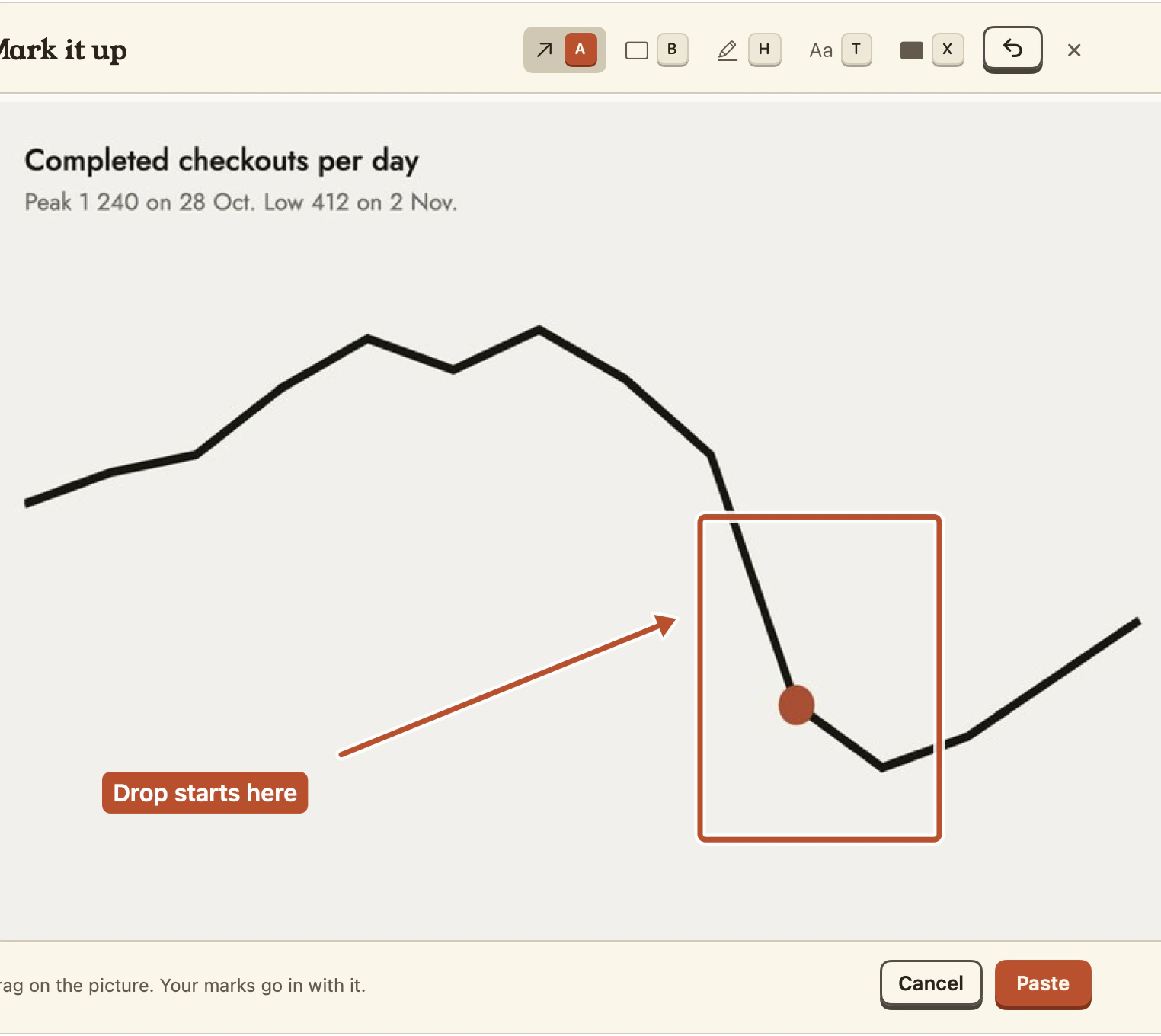
| Key | Tool | Use it for |
|---|---|---|
| A | Arrow | Pointing at one exact spot. Drag from where the arrow starts to what it points at. |
| B | Box | Framing a row, a button or a part of a form. |
| H | Highlight | Marking a sentence or a number to read. |
| T | Text | A short label. Click where it goes, type, press Enter. |
| X | Hide | Covering names, emails, keys or anything private. It's drawn into the picture, so it's really gone. |
⌘Z undoes the last mark. ↩ finishes. esc drops your marks: from the bar you go back to it, otherwise nothing is sent.
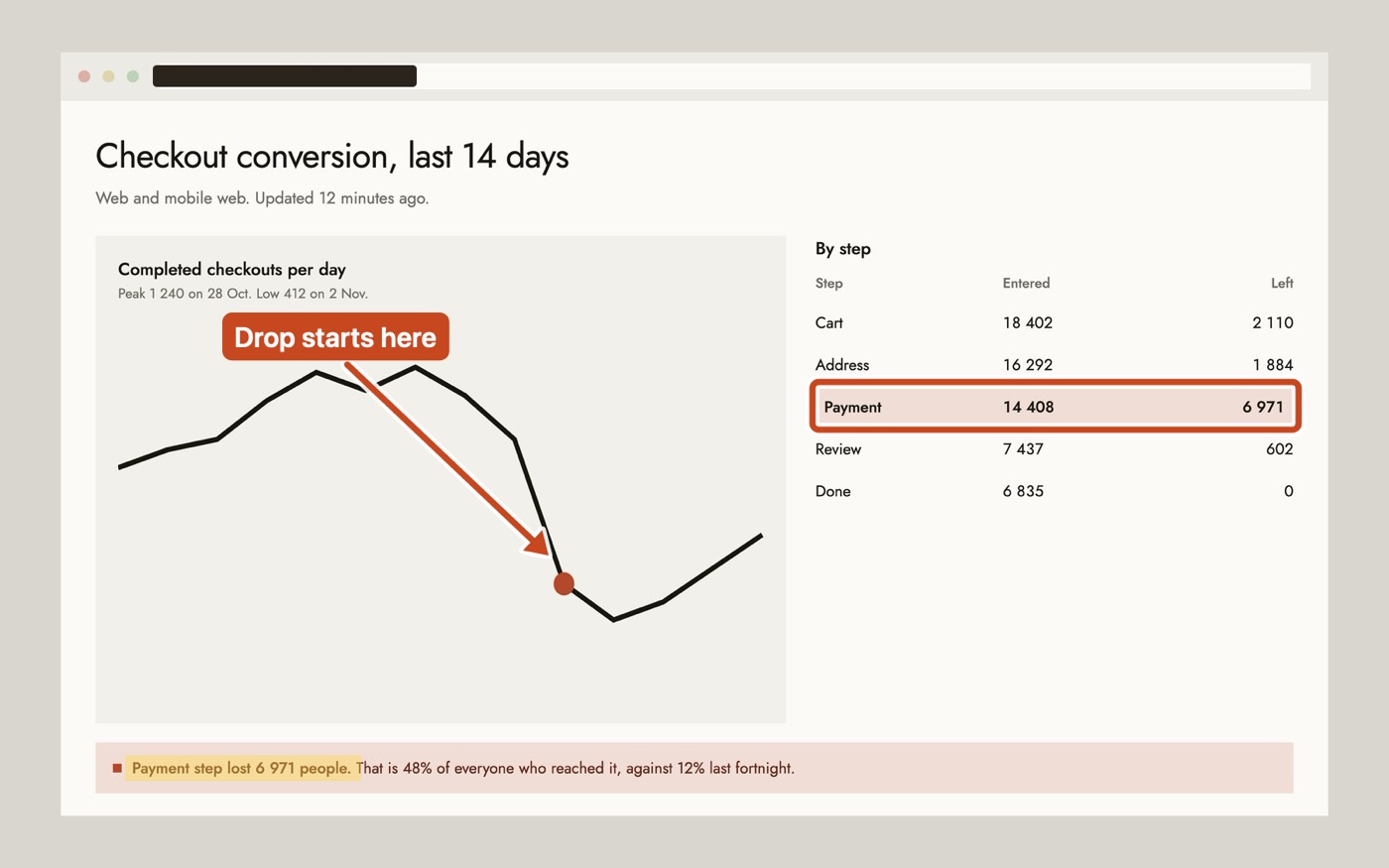
Youdrag over the dashboard holding ⇧, draw an arrow at the drop, box the Payment row, then paste
Claude getsScreenshot with your marks, ready for “Why does Payment lose so many?”
When you're done drawing, the bar comes back. Press space and say your question, and both land together.
NextReport a UI bug with a recording