
Stream Deck, Raycast and Shortcuts
Every action in the Send list has a paisted:// link. Put one on a key and a single press does the whole thing.
A link can say what to capture, which app it goes to, and a question to put under it. It starts the same thing as a shortcut: Paisted captures, pastes into the message box and leaves it unsent.
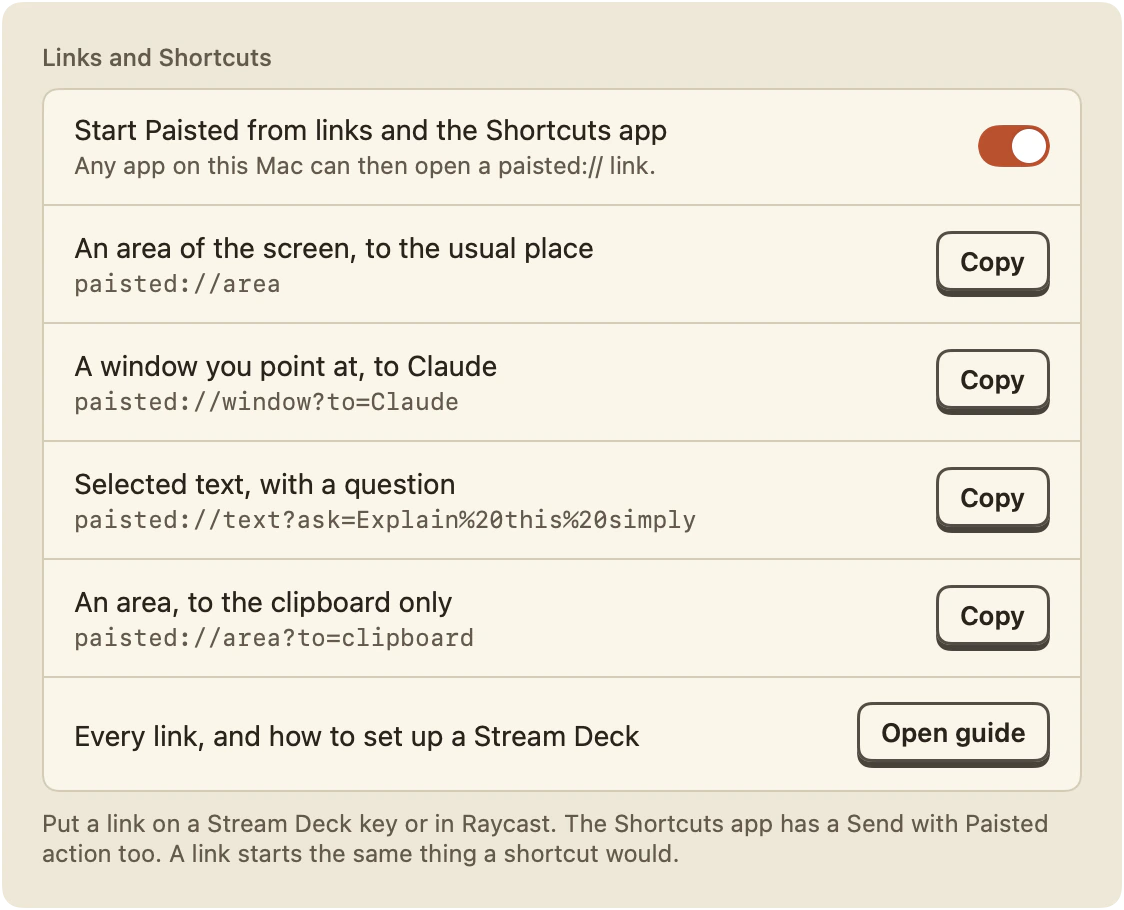
Stream Deck
- In the Stream Deck app, drag System › Website onto a key.
- Paste a link into URL, like
paisted://area?to=Claude. Leave the background request option off. - Give the key a title or an icon. Press it, drag over the part of the screen you want, and it lands in Claude.
Raycast
Choose Create Quicklink, paste a link as the address and give it a name, like Window to Claude. Type the name in Raycast and press Enter.
The Shortcuts app
Add the Send with Paisted action. Pick What, and fill in To and Question if you want them. Shortcuts can run it from the menu bar, a keyboard shortcut, or Siri: say “Send with Paisted”.
Every link
| Link | What it sends |
|---|---|
paisted://area | An area of the screen you drag over |
paisted://window | A window you point at and click |
paisted://screen | The whole screen |
paisted://long | The whole page, from the top |
paisted://read | The text in an area, read on your Mac |
paisted://record | A recording of an area |
paisted://text | The selected text |
paisted://text-link | The selected text with the page's link |
paisted://page | The page you're on |
paisted://clipboard | What's on the clipboard |
paisted://file | A file or video you pick |
paisted://dictate | Dictation |
paisted://command | A voice command |
paisted://list | Opens the Send list |
paisted://copy-area | An area, onto the clipboard only |
Add to a link
to=Claude | Sends to this app. Use a name from Settings › Apps, like Claude or Slack, or any app that's open. Leave it out for the usual place. |
to=claude.ai | Sends to an AI chat open in your browser: its address, like claude.ai or chatgpt.com, or its name in the Send list, like Claude%20in%20Chrome. The browser has to let Paisted see its tabs: macOS asks the first time you send a page from it. |
to=clipboard | Copies only, nothing is pasted. |
to=choose | Shows the list of apps after the capture. |
ask=Explain%20this | A question that goes in under what you send. Write spaces as %20. Up to 300 characters. |
voice=1 | Lets you say more after the capture. |
Join them with &: paisted://text?to=ChatGPT&ask=Make%20this%20shorter.
Don't want links to start Paisted? Turn off Start Paisted from links and the Shortcuts app in Settings › Shortcuts. Links then only show a message.
NextScreenshot a whole page, top to bottom