
Voice: dictation, commands and voice notes
Talk instead of typing. Speech is recognized on your Mac, and no audio leaves it.
Dictation
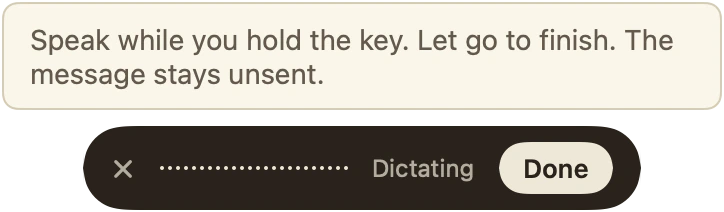
Press ⌘⇧1, then D. A small Dictating panel shows what it hears. Click Done and your words go into the message box as text, unsent.
Youpress D and say “Which step loses the most people?”
ChatGPT gets“Which step loses the most people?” as text
Hold a key to dictate
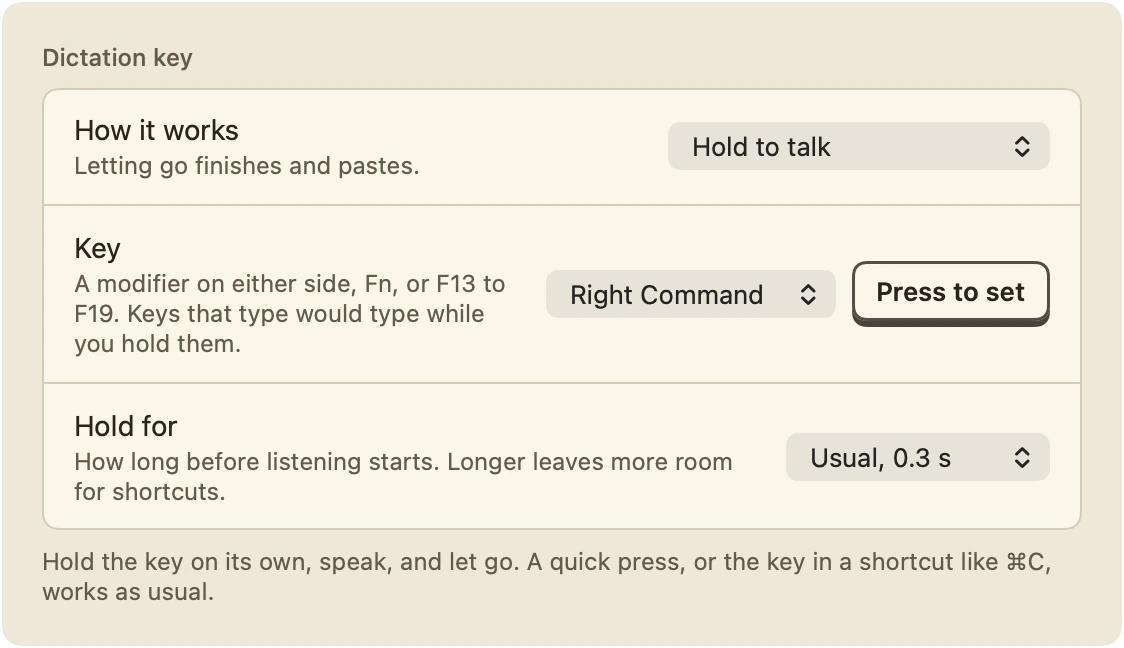
Hold the right ⌘ on its own and start talking. Let go, and your words go into the message box, unsent. A quick press, or ⌘ in a shortcut like ⌘C, works as usual.
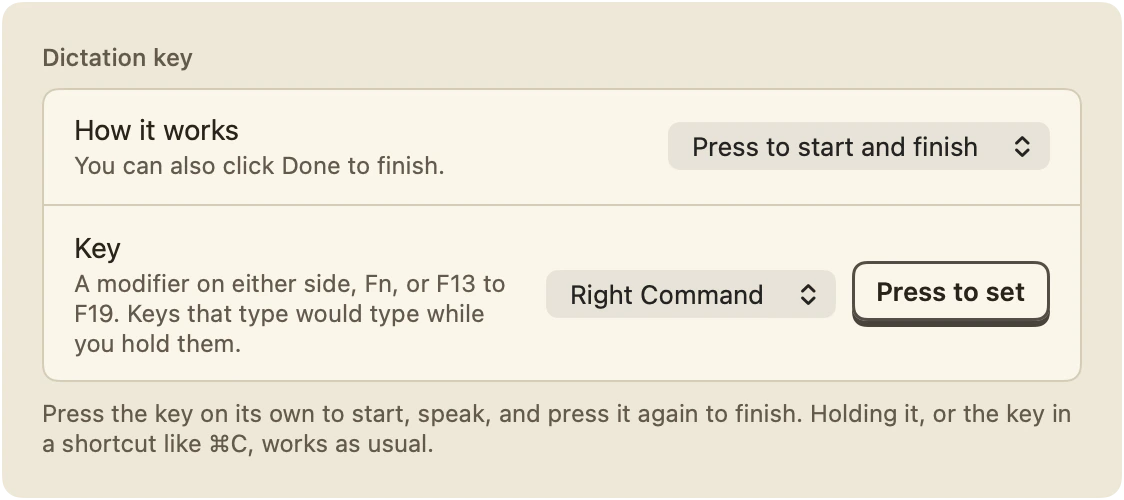
To use another key, open Settings › Voice and find Dictation key. Pick a key from the list, or choose Press to set and press the one you want. Any ⌘, ⌥, ⌃ or ⇧ on either side works, so does fn, and F13 to F19 on a full keyboard. Keys that type aren't offered, because they would type while you hold them. Choose Off to turn it off.
Press to start, press to finish
Rather not hold a key while you talk? Under Dictation key, set How it works to Press to start and finish. Press the key on its own once and speak. Press it again, or click Done, and your words go into the message box, unsent. A long press, or the key in a shortcut, does nothing.
With Hold to talk, Hold for sets how long the key stays down before Paisted starts listening, from 0.2 to 0.8 seconds. Longer leaves more room for shortcuts with that key.
Youhold the right ⌘, say “Make the empty state friendlier”, let go
Codex gets“Make the empty state friendlier” as text
Add your voice to anything
In the Send list, pick something with ⇧, like ⇧S. On the bar that comes up after the capture, press space instead of ↩. You speak, and both land together: the screenshot, recording or file first, your words under it.
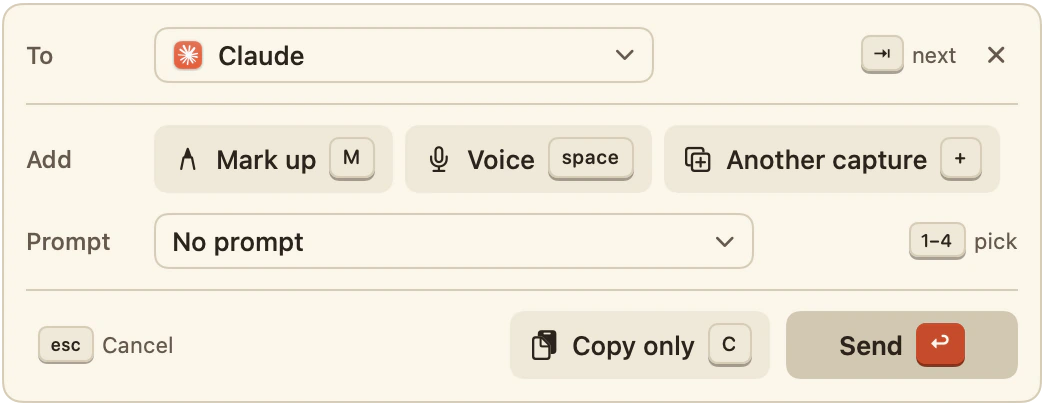
Youpress ⇧S, drag over a chart, press space and say “Why did this drop on 2 Nov?”
Claude getsScreenshot and “Why did this drop on 2 Nov?”
Voice commands
Press C and say one of these: “Screenshot” (or “Take a screenshot”), “Record”, “Stop recording”, “Cancel”, “Send file”, “Dictate”. A command has to match in full, so a half-heard sentence does nothing.
Commands are in English or Polish. If you dictate in another language, Paisted listens for commands in English, or in Polish when the app is in Polish. They work only inside Paisted: a command can't open another app or send a message.
Languages
Pick one in Settings › Voice. System language is the first language in your Mac's settings, so a Mac set to Russian listens in Russian, even though Paisted itself is in English. Some languages need Apple's speech model first, a one-time download, and Paisted offers it the first time you speak. Polish needs macOS 26. If a language can't run on this Mac, Paisted says so and won't listen in it rather than use a server.
NextRecord an area