
Your own prompts
Write the prompts you use often. A number on the bar after a capture puts one in with your screenshot, text or file.
- Press ⌘⇧1 and pick what to send with ⇧, like ⇧S for an area.
- On the bar that comes up, open the Prompt menu and pick one by name, or press its number, 1 to 9. Press the same number again, or choose No prompt, to take it off.
- Press ↩. Your agent gets both: the screenshot first, the prompt under it. Text and pages join with the prompt into one message.
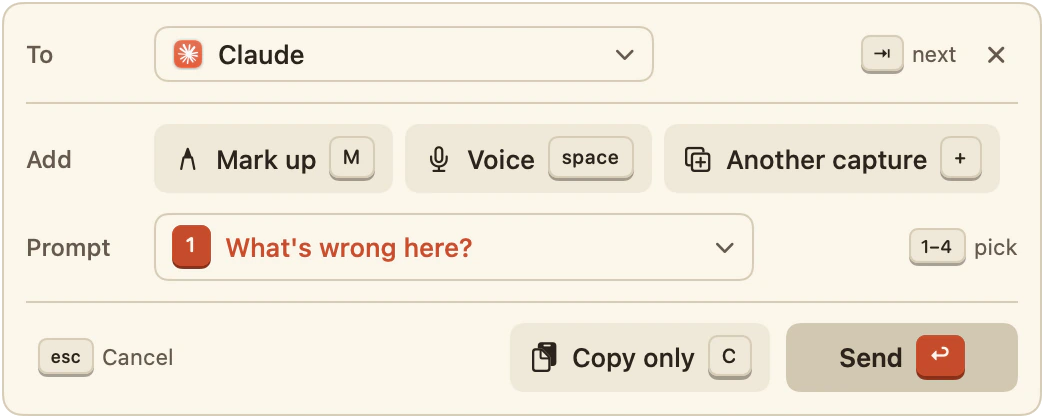
Youpress ⇧S, drag over an error dialog, then 1 and ↩
Claude getsScreenshot and “What's wrong here?”, unsent
Write your own
Open Settings › General and find Your prompts. Paisted starts you with four short questions. Change them, delete them, or choose Add a prompt, up to nine.
- Short name is what the Prompt menu on the bar shows, like Design review. Leave it empty and the first line shows instead.
- The text is what goes in. It can be several lines, like a whole set of instructions.
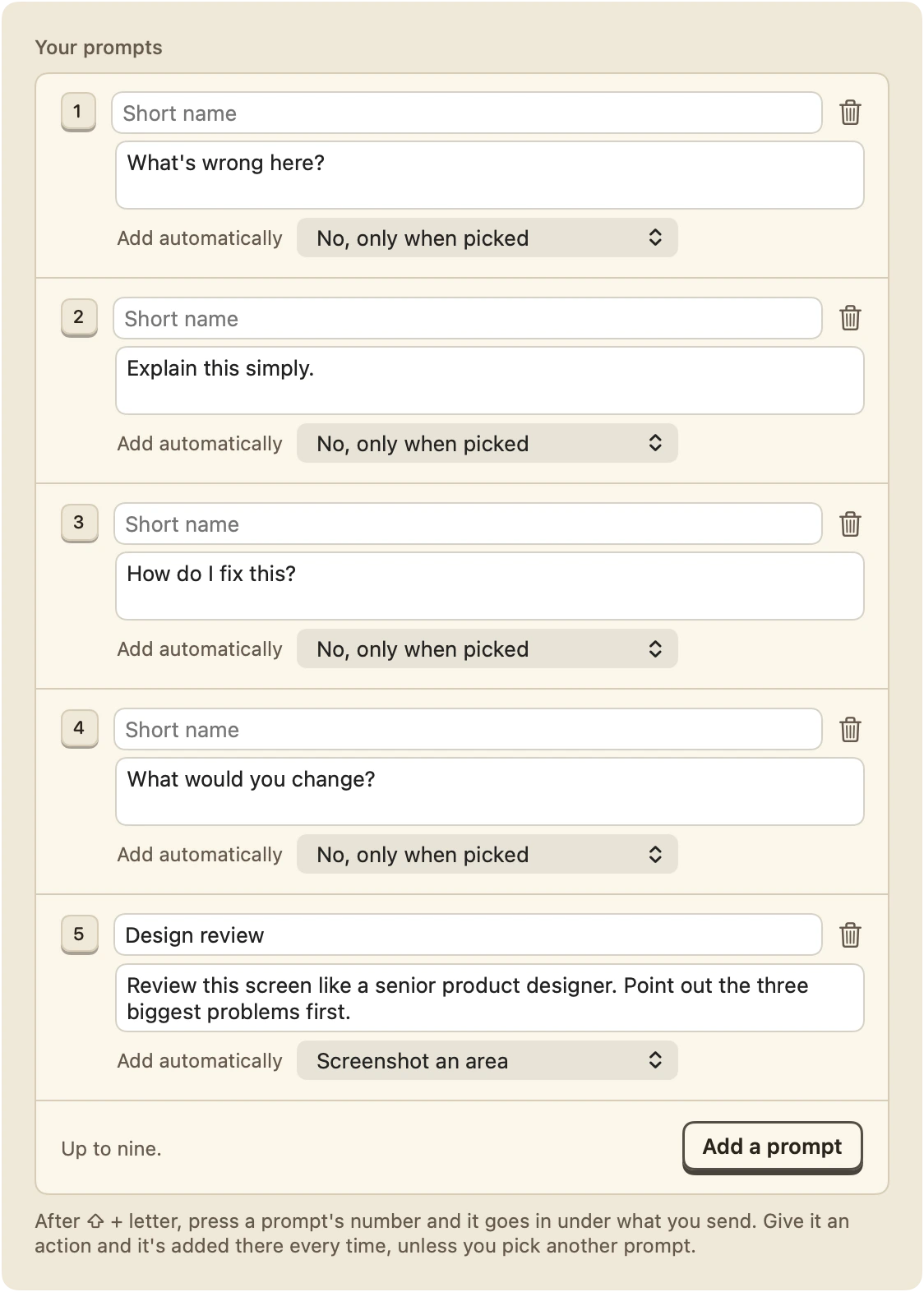
A prompt that joins by itself
Under a prompt, choose an action in Add automatically, like Screenshot an area. From then on, every area screenshot brings that prompt along, from the Send list, its own shortcut, a mouse button or a Stream Deck key. On the bar it shows as already picked: press its number to take it off, or another number to swap it.
With your voice, or several things
Press a number, then space instead of ↩, and you can say more. The prompt goes first, your words under it. With several things, the prompt joins the text at the end.
The message stays unsent. You can still change the prompt in the box before you press Enter.
NextYour own workflows